
Best for Logos
Brand marks and badges with clear edges usually trace into cleaner SVG output.
Trace JPG, PNG, and WebP into clean SVG output for logos, icons, signatures, and simple graphics that need scalable vector results.
Preparing uploader for drag-and-drop...
Use SVG for scalable graphics, or keep refining the source with compression, resizing, cropping, and cleanup.
Reduce file weight for web, email, upload limits, and sharing.
Set exact dimensions before publishing, uploading, or sending.
Refine framing and remove extra space around the subject.
Create a cleaner subject cutout for products and social assets.
Enhance low-resolution images before reuse or publishing.
This workflow is built for true SVG tracing, not fake file extension swaps. Cleaner source graphics lead to cleaner vector paths.

Brand marks and badges with clear edges usually trace into cleaner SVG output.
Simple UI graphics and symbols work well because they have limited colors and defined shapes.
Handwritten marks and stamps can become scalable SVG assets for documents and mockups.
Busy photography can still convert, but the resulting SVG may become larger and harder to edit.
SVG is most useful when you need artwork that scales cleanly across different sizes. That makes it a strong choice for logos, icons, simple illustrations, and signature-style graphics used in branding, slides, mockups, and print-ready layouts.
If your search intent is image to SVG converter or convert PNG to SVG, the real need is usually scalability and cleaner reuse. Vector-style output can stay sharper across layouts than a small bitmap reused again and again.
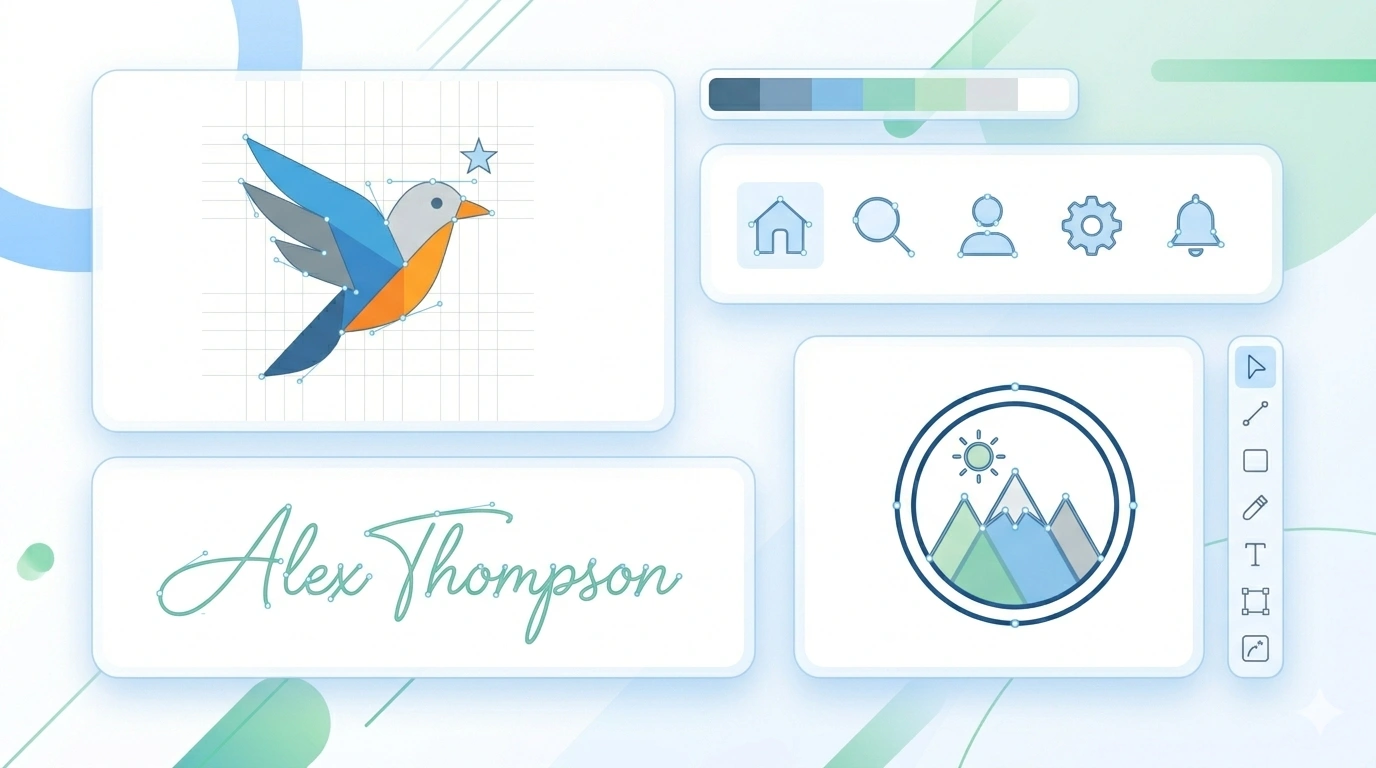

Raster files such as JPG, PNG, and WebP are built from pixels. SVG files describe shapes, curves, and fills with markup instead. That is why SVG can scale without the same kind of softness you see when a bitmap is enlarged too far.
However, raster-to-SVG conversion is not magic. A detailed source image can turn into a very complex SVG. The cleanest results usually come from flat artwork, high contrast edges, and images that are already visually simple.
Cleaning the image first often leads to a better SVG. Remove the background, crop tightly, or export a clean PNG before tracing.
Start with a JPG, PNG, or WebP file that has clear edges and simple shapes.
The tool converts pixels into vector-style paths automatically after upload.
Save the traced SVG for logos, print mockups, slides, or lightweight graphics workflows.
This workflow performs raster-to-SVG tracing rather than simply renaming the file extension. The output is generated as SVG markup so it can scale more cleanly than the source bitmap, especially for simple graphics with defined edges and limited colors.